Unicook

Connecting Airis to the Safera app


Pairing your Airis stove guard to your device

Follow our guide to get your Airis connected to your device via Bluetooth:

  1. Ensure that your Airis Multisensor and PCU have been correctly installed and that you have downloaded the Safera app to your device, as per our guides: Installing Airis and Downloading the Safera app.
  2. Open the Safera app on your device.
  3. Upon opening the app, you'll be greeted by the welcome screen. Simply press the "Connect to Safera Device" button to start the connection process. For Android users, you will need to accept any necessary permissions for the app to work – follow the on-screen prompts to grant these permissions.
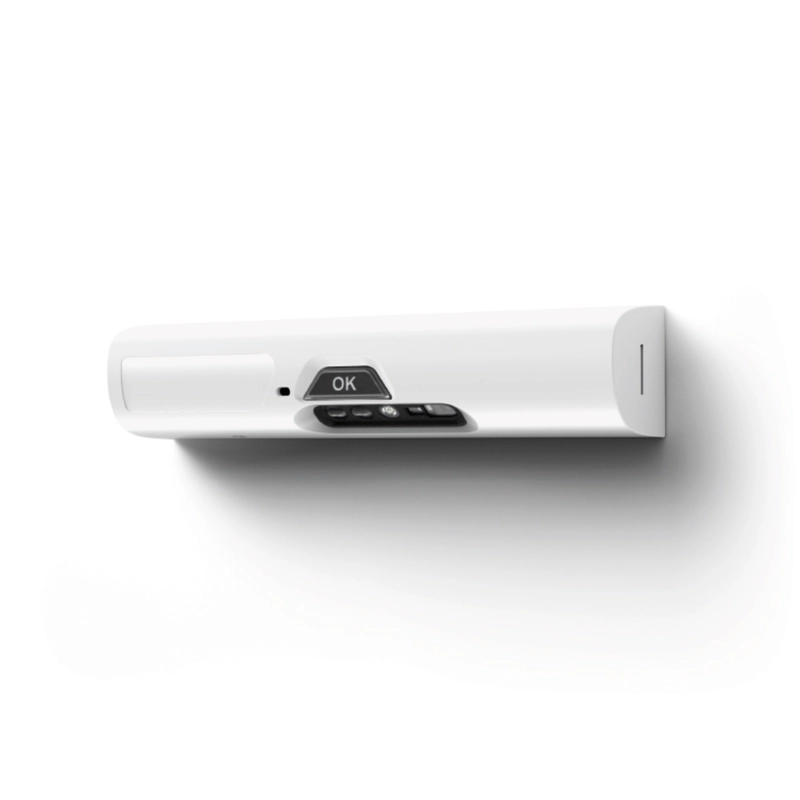
  4. Press the OK button on the Multisensor. It will now appear in the detected devices list. Select "connect" and then "pair" when prompted to complete the connection.
  5. The app will display a "Connecting" screen as it connects to your Airis Multisensor.
  6. Once connected, you'll see your device on the dashboard screen of the app, or listed in the connected devices in the menu screen.

Please note: there is a maximum number of Bluetooth connections allowed on both iOS and Android devices. If you are connecting to multiple sensors over time, we recommend going to your Bluetooth settings periodically and deleting previous sensor connections to avoid any issues.

Have a different question, or need more information?

Get in touch with Unicook on +33 (0)2 22 44 44 97, or select one of the options below.

Email Us
5-star rating

Rated 5 stars by our customers

Unicook certifications

We’ll call you back!

If you have any questions or if you need advice, we’ll be happy to help.